 Crew Numbers for Sheets
Your job profit and crew pay, in your own Google Sheet
Stop copying exports by hand. Crew Numbers for Sheets fills your sheet with jobs, crew, clients, services, money owed and pay lines, and keeps them up to date.
Free with any paid Crew Numbers or CrewPay plan. Read-only, and it sees only this sheet. Disconnect anytime and your tables stay.
Install from a computer. Add-ons run in Google Sheets on a computer.
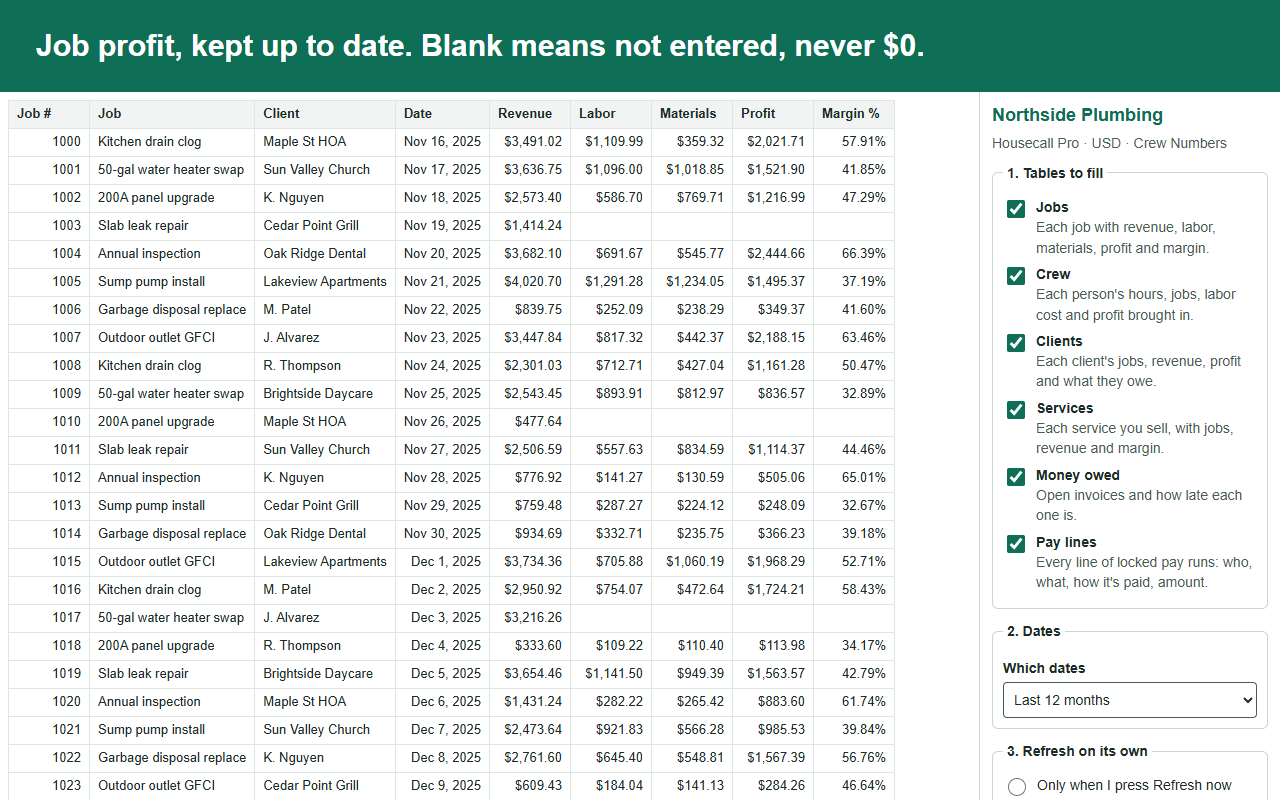
Built for owners and bookkeepers who live in Sheets
Works with Housecall Pro, Simpro, ServiceM8 and Gusto through Crew Numbers and CrewPay. One sheet per client: each spreadsheet connects on its own, so a bookkeeper can keep each client's numbers in that client's sheet.
Your tables, filled for you
Pick the tables and the dates. Press one button. Each table gets its own tab with a header row and plain money and dates.
Refreshes on its own
Every day at the hour you pick, or every hour. Big tables take a few hourly refreshes to finish, and the sidebar shows how far it got.
Your formulas keep working
Build commission sheets and charts next to our tables. New columns go at the end, and nothing of yours gets covered.
What owners do with it
- Track commission and piece-rate pay in the sheet you already use, without retyping jobs.
- Hand your bookkeeper live job profit, labor and materials by client and service.
- Chart profit per person, revenue by service and who owes you money.
Safe by design
- Read-only. It can't change anything in your app, or in Housecall Pro, Simpro, ServiceM8 or Gusto.
- Only this sheet. It sees only the spreadsheet you use it in. It never opens your other Google files.
- Asks first. It never replaces anything you typed without asking.
- Missing data stays blank. If a cost wasn't entered, the cell is empty, never a made-up $0.
Questions
Will it break my sheet? It writes only to its own CN tabs. It asks before replacing anything you typed into them.
What if I stop paying? Your tables stay in the sheet. They stop refreshing.
Do I need my client's login? No. You get a code in the sheet and your client types it in their app.
Price
Free with any paid Crew Numbers or CrewPay plan, and during free trials.
Sheets only plan, where your app offers it, for owners who want the tables without the full app. The price is on your app's billing page.
Set up in about a minute
- Install the add-on and open it from the Extensions menu.
- Pick your app and type the 8-character code into your app's Sheets settings. No new password.
- Press "Fill my sheet".
You set it up once. It refreshes on your schedule after that. Read the help or ask us a question.